Introduction to Docker
In this tutorial you’ll learn:
- How to run containers.
- How to define and build images.
- How to create and use volumes.
- How to define and use networks.
Terminology
You’ll use the terminal to run Docker commands. Referring to the Docker architecture, the terminal is the client that communicates with the Docker daemon (the server).
Docker runs containers on your computer. We’ll refer to your computer as the host, the containers being the guests.
- A containerized application is an application running in a container.
1 Running containers
We now learn how to use the command docker run and some of
its options.
In the following exercises, we’ll run containers from the image named
alpine that is
available on the DockerHub registry.
This image provides a lightweight distribution
(i.e., it doesn’t contain many features) of Linux.
Exercise
Solution
The goal of this exercise is to start playing with the
docker run command.
Since the question doesn’t say anything about the
options, nor does it mention the command to run inside the container,
we’d type:
docker run alpine
Exercise
Solution
In order to list all containers still running on the host, type the following command:
docker container ls
Your container shouldn’t appear in the output, because it’s not running. In order to see all containers, including those that are not running, type the following command:
docker container ls -a
Exercise
/bin/sh),
can you tell why the container stopped without giving any output?
Solution
The command is /bin/sh;
the container runs a Linux terminal.
But since we didn’t specify what to do with that terminal
(we didn’t run any Linux command, nor we tried to access the terminal),
the container stopped.
We’re now going to do something useful with the image alpine. Make sure you read the good practices that you should adopt while playing with images and containers.
Good practices
- Name your containers. Although Docker assigns a default name to a new container,
it’s usually a good practice to give a container a name of your
choice to make it easily distinguishable. You can do it by using the option
--name. Try the following:
docker run --name my-alpine alpine
As before, the container stops immediately. If you list all your containers by typing again:
docker container ls -a
you should see a container named my-alpine.
- Remove automatically a container if you use it once.
Unless you want to reuse your container later, you can ask Docker to automatically remove it
when it stops by using the option
--rm. This will prevent unused containers from taking up too much disk space.
Try the following:
docker run --rm --name container-to-remove alpine
If you list all the containers you should see that there is no container named container-to-remove.
- Remove unused containers. Stopped containers that have been run without
using the option
--rmare still stored in the host. If you want to remove a specific container (e.g., my-alpine), use the following command:
docker container rm my-alpine
If you want to remove all stopped containers, use the following command:
docker container prune
- Remove unused images. Images can take up a lot of disk space.
As a result, you should remember to remove those that you don’t intend to use
any longer.
The commands to remove a specific image
and prune unused ones are
docker image rmanddocker image prune -arespectively.
1.1 Pass a command to the containerized application
Remember that the template of docker run is the following:
docker run [options] image-name [command] [arg]
The optional parameter command refers to a command that you can pass the containerized application, possibly with some arguments (parameter arg).
Let’s see an example.
As we saw before, when we run a container from the image alpine,
a Linux terminal /bin/sh is launched.
Notice
The Linux terminal /bin/sh is run within the
container.
Henceforth, we’ll use the following terms:
- Host terminal. The terminal that you use to interact with the operating system of your computer.
- Guest terminal. The terminal that is run within the container.
By using the optional parameter command, we can run a command in the guest terminal.
Exercise
Exercise 1.4
Run a container from the image alpine and execute the
Linux command ls that lists the content of the current directory.
- Where are the listed files stored? In the host or in the container?
Solution
docker run --rm --name ls-test alpine ls
- The command
lsis run in the guest terminal, therefore what we see in the output is a list of files stored in the container.
Notice
In Exercise 1.4 the command
ls is executed in the guest terminal, but its
output is redirected to the host terminal.
In other words, when we run the container, we don’t interact directly with the guest terminal; we just send a command and the output is redirected to the host terminal.
Now let’s see how to execute a command in the guest terminal that also requires an argument.
Exercise
ping, check
whether the Web site www.albertschool.com is reachable.
Solution
docker run --rm --name ping-test alpine ping en.albertschool.com
In order to interrupt ping
just type the key combination that you’s use to
interrupt any other command in your terminal.
(typically Ctrl-C on Windows and Cmd-C in MacOs).
Now run the following command:
docker run --name my-alpine -it alpine
Note: we didn’t use the option --rm (the container will not be removed
when we stop it, we’re going to use it again).
Moreover, we didn’t specify any command to run in the guest terminal.
Exercise
Solution
When we run a container from the image alpine, the command
/bin/sh is executed within the container.
Since we specified the option -it, what we obtain is an access to the
Linux terminal running in the container.
1.2 Starting and stopping containers.
docker run is a shorthand for two Docker commands, namely
docker create, that creates a container from an image,
and docker start, that starts the container after its creation.
Suppose now that you want to download a Web page
by using Linux Alpine.
You can use the Linux command wget followed by the URL of the page
that you want to download.
Exercise
Exercise 1.7 By using the guest terminal in the container my-alpine, download this Web page.
- Where will the Web page be saved? The host computer or the container?
Solution
Just type in my-alpine guest terminal the following command:
wget https://en.albertschool.com/formulaire
- The Web page will be saved in the current directory
of the container. You can verify that the file is there
by typing
lsin the guest terminal.
Want to copy the donwloaded file from the container to your computer?
To copy the file formulaire to your working directory, type the following command in
the host terminal:
docker cp <containerId>:/formulaire .In the previous command, replace <containerId> with the identifier of your container. You can obtain
the identifier of the container from the output of the command docker container ls.
Where are the containers and image files stored?
If you use MacOS or Windows
The files managed by Docker are not stored directly in your computer, but in the Linux virtual machine installed and operated by Docker Desktop (remember, Docker always need Linux to be executed).
Therefore, you need to open a terminal inside that Linux virtual machine by typing the following command:
docker run -it --rm --privileged --pid=host justincormack/nsenter1Once the terminal is opened, you can follow the instructions given below for Linux users.
If you use Docker on Linux
All files managed by Docker are stored under folder
/var/lib/docker.To access that folder, you need to be root (i.e., administrator). Type the command
sudo su.If you type
ls /var/lib/dockeryou can look at the folders stored under this directory. You’ll see that there are folders corresponding to the different objects managed by Docker (containers, images, volumes and networks).To locate the files of a specific container, you first need to get the container identifier by typing
docker container ls -a.Type the command
docker inspect <container-id>(replace<container-id>with the identifier of the container that you intend to inspect).Locate the field
UpperDir. The value of this field is the path to the directory (let’s call itCONTAINER_DIR) that contains the upper layer of the container (the writable layer). It should be a path that ends by/diff.If you type
cd CONTAINER_DIR(replaceCONTAINER_DIRwith the value of the fieldUpperDir) you can finally see the files stored in your container.
In my-alpine guest terminal type exit.
This closes the guest terminal and, as a result, stops the
container.
NOTICE
Stopping the container will not erase any of the files stored in the container. Removing the container will.
If you want to start the container my-alpine again, you can use the following command:
docker container start -ai my-alpine
This will open the guest terminal of the container again;
type ls to verify that
the Web page that you downloaded before is still there.
2 Creating Images
A Docker image can be thought of as a template to create and run a container. An image is a file that contains a layered filesystem with each layer being immutable; this means that the files that belong to a layer cannot be modified or deleted, nor can files be added to a layer.
When a container is created from an image, it will be composed of all the image read-only layers and, on top of them, a writable layer (termed the container layer), where all the new files created in the container will be written. For example, the Web page that you downloaded in Exercise 1.7 were stored in the writable layer of that container.
2.1 Dockerfiles
The most common way to create an image is to use a Dockerfile, a text file that contains all the instructions necessary to build the image. The advantage of the Dockerfile is that it can be interpreted by the Docker engine, which makes the creation of images an automated and repeatable task.
Suppose that you want a quick way to download all the images from a Web page. You learn that a quick way is to use the almighty Linux commands and you find on the Web a Bash script that does exactly what you want:
#!/bin/bash
wget $1 -O page.html
grep -E "(https?:)?//[^/\s]+/\S+\.(jpg|png|gif|svg)" page.html -o | sed "s/(^https?)?\/\//https\:\/\//g" -r > urls.txt
sed -E "s/\/thumb//g; s/\/[0-9]+px-.+\.(jpg|png)$//g" urls.txt | uniq > urls-new.txt
wget -i urls-new.txt -P downloads/
Don’t worry if you don’t understand these instructions. Suffices to say that:
The first instruction gets an URL as an argument (
$1) and downloads the page pointed by the URL into a file calledpage.html.The second instruction extracts from
page.htmlall the URLs pointing to images. The URLs are saved to a file calledurl.txt.The third instruction filters the URLs that point to full-size images. It saves the filtered URLs to a file called
urls-new.txt.The fourth instruction downloads the full-size images to a folder named
downloads.
You now create a folder in your computer named myfigures;
you create a new text file that you name dlimages.sh and you save it under folder myfigures;
you copy the above Bash script into the new file and you save it.
But now you wonder: how can you execute this script if you’re not using Linux?
The answer is: you can create a new Docker image (let’s call it dlimages)
from the official Ubuntu image!
The Dockerfile containing the instructions to build the image dlimages is as follows:
FROM ubuntu
RUN apt-get update
RUN apt-get install -y wget
RUN mkdir -p /scripts
COPY dlimages.sh /scripts/dlimages.sh
RUN chmod +x /scripts/dlimages.sh
ENTRYPOINT ["/scripts/dlimages.sh"]
CMD ["https://en.wikipedia.org/wiki/Cat"]
Here’s the explanation:
We use the image ubuntu as the base image. This corresponds to the instruction
FROM ubuntu.We install the utility
wgetin the base image. This corresponds to the instructionsRUN apt-get updateandRUN apt-get install -y wget.We create a directory
scriptsunder the root directory of the image. This corresponds to the instructionRUN mkdir -p /scripts.We copy the file
dlimages.shto the folderscriptsin the image. This corresponds to theCOPYinstruction.We specify that
dlimages.shcan be executed. This corresponds to theRUN chmod -xinstruction.We specify the command to be executed when a container is run from this image. This corresponds to the instruction
ENTRYPOINT. When we run a container from this image, we execute the scriptdlimages.sh.We specify a default argument to be passed to the script. This corresponds to the instruction
CMD.
Exercise
Solution
Each line corresponds to a new layer. The first line corresponds to the bottom layer; the last line to the top layer.
Exercise
Solution
When creating an image, we should keep the number of layers relatively small; in fact, the more the layers, the bigger the image will be. Here we create three separate layers with three RUN commands; we can simply merge the three layers. The resulting Dockerfile will be:
FROM ubuntu
RUN apt-get update && \
    apt-get install -y wget && \
    mkdir -p /scripts
COPY dlimages.sh /scripts/dlimages.sh
RUN chmod +x /scripts/dlimages.sh
ENTRYPOINT ["/scripts/dlimages.sh"]
CMD ["https://en.wikipedia.org/wiki/Cat"]
2.2 Building an image
We’re now going to build an image from a Dockerfile.
Create a new file named
Dockerfileunder the foldermyfigures.In the Dockerfile write the set of instructions that you proposed in Exercise 2.2.
In the terminal, set the working directory to myfigures.
Build an image called dlimages by executing the following command:
docker build -t dlimages .
The . at the end of the command means that the Docker engine will
look for a file named Dockerfile in the working directory.
In order to verify that the new image has been created, type the following command:
docker images
Exercise
Exercise 2.3 Run the following command:
docker run --name dl1 dlimages
Solution
We downloaded the figures of this page. The downloaded pictures are in the folder /downloads of the container dl1.
You can copy them to your computer with the following command:
docker cp dl1:/downloads .Exercise
Exercise 2.4 Run the following command:
docker run --name dl2 dlimages https://en.wikipedia.org/wiki/DogSolution
We downloaded the figures of this page. We basically overwrote the URL specified by the CMD keyword with a new one. The downloaded pictures are in the folder /downloads of the container dl2.
2.3 Containerized Python application
Download this archive file and unzip it into your working directory. In this archive you’ll find:
- A Dockerfile.
- A Python script main.py that asks the user to enter the URL and the language of a Web page, and prints the 10 most frequent words occurring in that page.
- A file requirements.txt with the list of the Python packages needed to run the given script.
The content of the Dockerfile is as follows:
FROM python:3.7-slim
RUN mkdir -p /app
WORKDIR /app
COPY ./main.py ./requirements.txt /app/
RUN pip install -r requirements.txt
ENTRYPOINT ["python", "main.py"]
Exercise
Solution
- Takes python:3.7-slim as the base image.
- Creates a new folder app in the image under the root directory.
- Changes the working directory to /app.
- Copies the files main.py and requirements.txt from the local computer to the directory /app in the image.
- Runs the command
pip installto install the Python libraries specified in the file requirements.txt. - Executes the command
python main.py.
Exercise
Solution
docker build -t wordfreq .
Exercise
Solution
The build is very fast. Since we didn’t change the Dockerfile, the image is rebuilt by using the image layers created previously. This is clearly indicated by the word CACHED written at each layer. Using the already stored layers is called build cache.
Exercise
Solution
Add any instruction at the end of main.py, such as:
print("Finish!")then rebuild the image. The three bottom layers are not affected by the modification, therefore they benefit from the build cache. Layer 4 is the first affected by the modification. This layer, and those above, need therefore to be rebuilt.
Exercise
Solution
Each time we modify main.py and we rebuild the image, the layer 4 and 5 are recreated, meaning that all the Python packages are downloaded and installed. Depending on the size and number of the packages, this might take some while. A better way to structure the Dockerfile is to install the packages before copying the Python script to the image. Here is how we should modify the Dockerfile:
FROM python:3.7-slim
RUN mkdir -p /app
WORKDIR /app
COPY ./requirements.txt /app/
RUN pip install -r requirements.txt
COPY ./main.py /app/
ENTRYPOINT ["python", "main.py"]
Exercise
Solution
The Python packages are not reinstalled, as a result rebuilding the image
takes much less time than before.
Play with the application by running the following command:
docker run --rm -it wordfreq
The containerized application will prompt you to insert the URL of a webpage and the language of the page (in English). The output will be the 20 most used words in the webpage.
3 Data Volumes
In Exercise 2.3 you’ve been asked to run a container named dl1 to download images from a Web page. The figures were downloaded into the directory /downloads of the container. But we left a question unanswered.
How do we transfer those figures from the container to the host computer?
Yes, we can use the command docker cp, but there is still a problem left: if we remove the container dl1, we also lose all
the images. In other words, any file created within the container has a lifetime that depends on the container itself.
This is not a good option in production.
The solution is to use volumes to decouple the application from the the data.
3.1 Docker volumes
A volume can be seen as a virtual storage device attached to a container. All files there are written to a volume survive the containerized application that created them. In other words, when a container is destroyed, all the files created by the application in the container remain in the volume.
Let’s create a new Docker volume called data-volume:
docker volume create data-volume
Good to know (advanced notion)
Where the data will be actually stored?
You can inspect the new volume by typing the following command:
docker volume inspect data-volume
A mount point is indicated; that’s the folder where the data will be actually stored. If your computer runs Linux, that folder will be available on the host; if your computer runs Windows or MacOS, you’ll not find that folder on your computer. Instead, it will be available in the virtual machine that Docker use on MacOS and Windows.
Do you want to see the directory? (Instructions for Windows and MacOS)
One way to look into the hidden VM is to run the following containerized application:
docker run -it --rm --privileged --pid=host justincormack/nsenter1
This application will open a guest terminal into the VM.
You can then use the commands cd and ls
to browse to the directory indicated as the mount path
of the new volume.
4 Single-Host Networking
In order to let containers communicate and, therefore, co-operate, Docker defines a simple networking model known as the container network model.
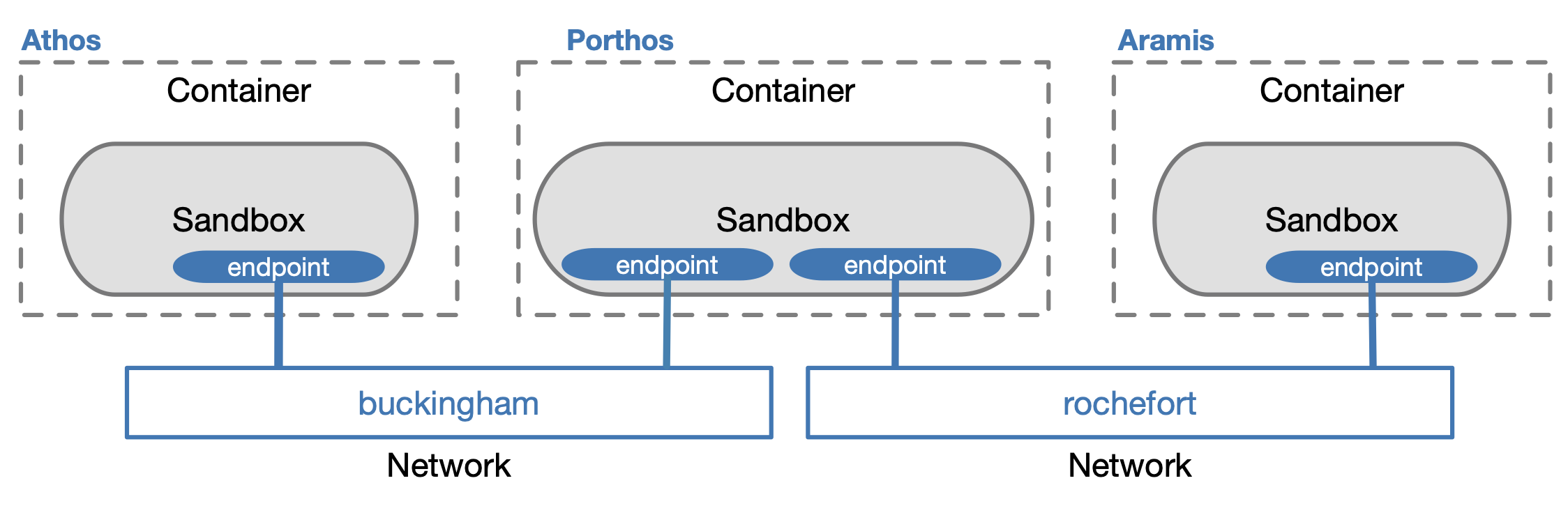
Figure 4.1: Container network model
Exercise
Exercise 4.1 Describe the output of the following command:
docker network ls
Solution
The command lists all the networks created by Docker on your computer. For each network, the values of four attributes are shown:
- The identifier.
- The name.
- The driver used by the network.
- The scope of the network (local or global). A local scope means that the network connects containers running on the same host, as opposed to a global scope that means that containers on different hosts can communicate.
Depending on the containers that you used in the past, you might see different networks. However, three networks are worth noting:
- The network named bridge, that uses the driver bridge and a local scope. By default, any new container is attached to this network.
- The network named host, that uses the driver host and a local scope. It’s used when we want a container to directly use the network interface of the host. It’s important to remember that this network should only be used when analyzing the host’s network traffic. In the other cases, using this network exposes the container to all sorts of security risks.
- The network named none, that uses the driver null and a local scope. Attaching a container to this network means that the container isn’t connected to any network, and therefore it’s completely isolated.
Exercise
Exercise 4.2 The following command:
docker network inspect bridge
Solution
The information is specified in the field named IPAM, more specifically:
Subnet indicates the range of IP addresses used by the network. The value of this field should be 172.17.0.0/16; the addresses range from 172.17.0.1 to 172.17.255.255.
Gateway indicates the IP address of the router of the network. The value should be 172.17.0.1
4.1 Creating networks
By default, any new container is attached to the network named bridge.
Exercise 4.3 Explain why it is not a good practice to attach all our containers to the same network.
Solution
All new containers will be able to communicate over this network. This is not a good idea. If a hacker can compromise any of these containers, s/he might be able to attack the other containers as well. As a rule of thumb, we should attach two containers to the same network only on a need-to-communicate basis.
In order to create a new network, you can use the following command:
docker network create network_name
Exercise
docker network inspect command,
look at the IP addresses of the new networks and write them down.
Solution
Just run the following commands:
docker network create buckingham
docker network create rochefort
The IP addresses for the network buckingham are 172.18.0.0/16 (addresses from 172.18.0.1 to 172.18.255.255); The IP addresses for the network rochefort are: 172.19.0.0/16 (assuming that you create buckingham before rochefort).
The IP addresses may be different on your machines.
Exercise
Exercise 4.5 Create three containers athos, porthos and aramis and attach them to the two networks buckingham and rochefort as displayed in figure. The three containers will open a Linux Alpine shell. You’ll need to launch the commands in three separate tabs of your terminal window.
- What will the IP addresses of the three containers be in the two networks? Remember that porthos is attached to two networks, therefore it’ll have two network interfaces (endpoints) and, as a result, two IP addresses.
- Verify your answers by inspecting the two networks (use the
command
docker network inspect).
Solution
Here are the commands to run athos and aramis while connecting them to buckingham and rochefort respectively.
docker run --rm -it --name athos --network buckingham alpine
docker run --rm -it --name aramis --network rochefort alpine
Here’s the command to run porthos and attach it to buckingham:
docker run --rm -it --name porthos --network buckingham alpine
The following command attaches porthos to the second network rochefort:
docker network connect rochefort porthos
As for the IP addresses, each network has IP addresses in the range 172.x.0.0/16, where x is 18 in the network buckingham and 19 in the network rochefort. The address 172.x.0.1 is reserved for the router. Therefore, the containers will be assigned IP addresses from 172.x.0.2. In this solution, we created athos, aramis and portos in this order. Therefore, the IP addresses will be:
- In network buckingham:
- athos: 172.18.0.2
- porthos: 172.18.0.3
- In network rochefort:
- aramis: 172.19.0.2
- porthos: 172.19.0.3
You can actually verify this configuration by inspecting the two networks with the following commands:
docker network inspect buckingham
docker network inspect rochefort
The IP addresses might be different on your machines.
4.2 Communication between containers
Let’s see if and when the three containers can communicate.
Exercise
Solution
The only containers that cannot communicate are athos and aramis, because they’re not connected to the same network.
Exercise
Exercise 4.7 Try to ping porthos from athos by using its IP address.
- Which IP address of porthos would you use?
Solution
We need to use the IP address assigned to the endpoint linking porthos to the network buckingham, to which athos is connected. In our case, this is 172.18.0.3.
Exercise
Solution
We succeed. Indeed, the network buckingham provides a DNS server, that can translate names into IP addresses.
You can now exit the three containers.